Database
The Database is the analytical counterpart of the Catalog: one row per tablet, every recorded property available as a column and as a filter. It is designed to build a working corpus — all administrative texts from one scribal school, all tablets from a given findspot with photographs available — and to export it.
What you see depends on your account
The table only holds the texts your account is allowed to see, and the number printed beside each filter value counts the texts visible to you. Two further columns — backup and edit — exist for editorial accounts only. See Who sees what.
Database: general view
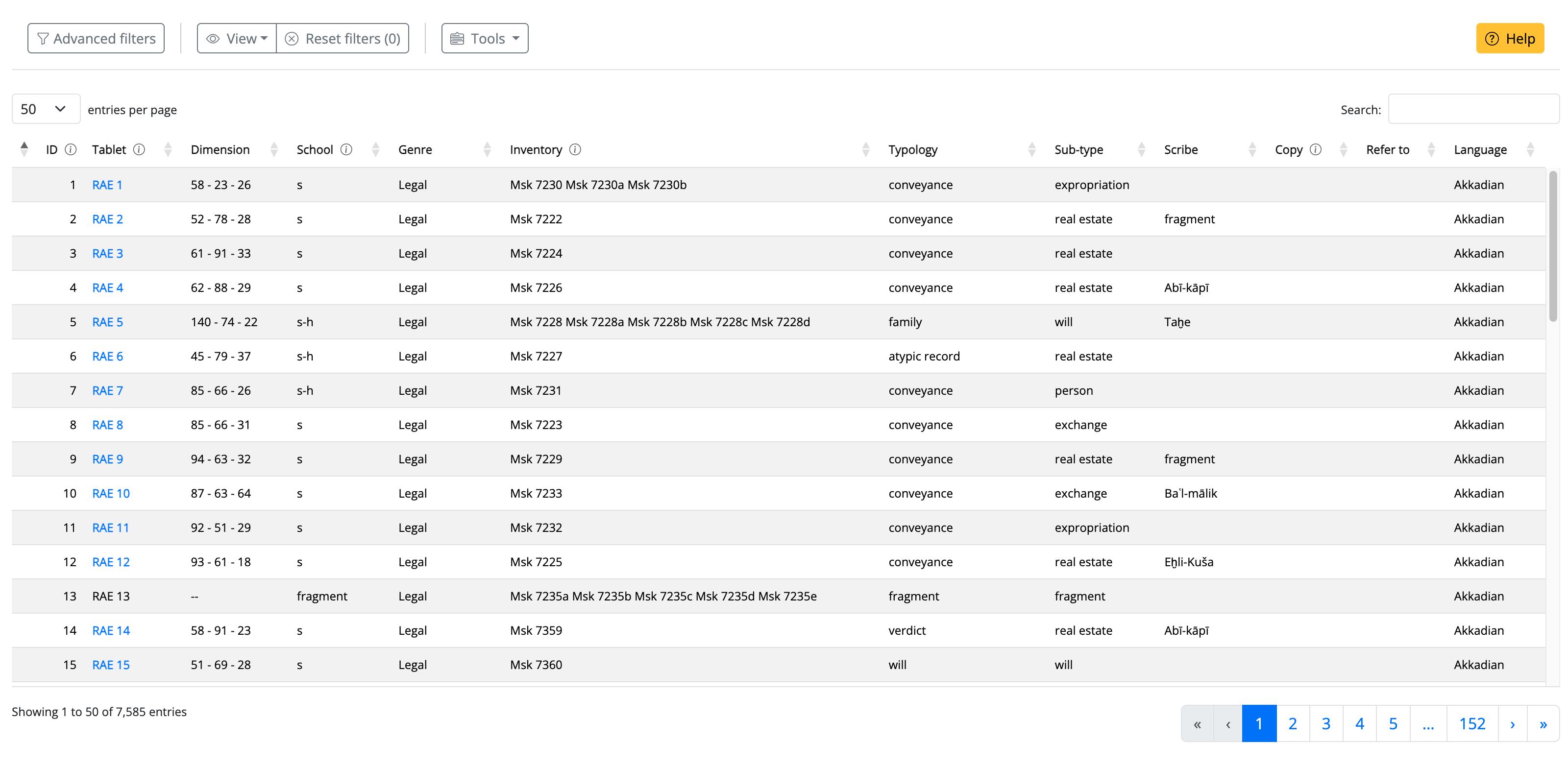 Fig. 1
1. The table
Each row is a tablet, documented — where the information exists — through its physical characteristics (dimensions), palaeographic features (scribal school, scribe), textual classification (genre, typology, sub-type, language), archival metadata (inventory number, bibliographic reference, publication status) and archaeological context (collection, site, findspot). Two further columns record whether a transliteration and images are available.
An empty cell means the datum has not been recorded, which is not the same as saying it is absent from the object: the corpus is a work in progress and the density of description varies from archive to archive.
Clicking a siglum opens the text. Sigla of tablets without a transliteration are not links.
Sorting: click a column header. Sigla, inventory numbers and other alphanumeric identifiers
sort naturally, so 2 precedes 10.
Reordering: click and drag column headers to reorder a table as it sees fit.
2. Simple filter
The database content can be filtered using the global search box in the top-right corner. This filter is case-insensitive and matches your search term against the entire table, including columns that aren't currently displayed. Only rows containing a match are shown.
Simple filter
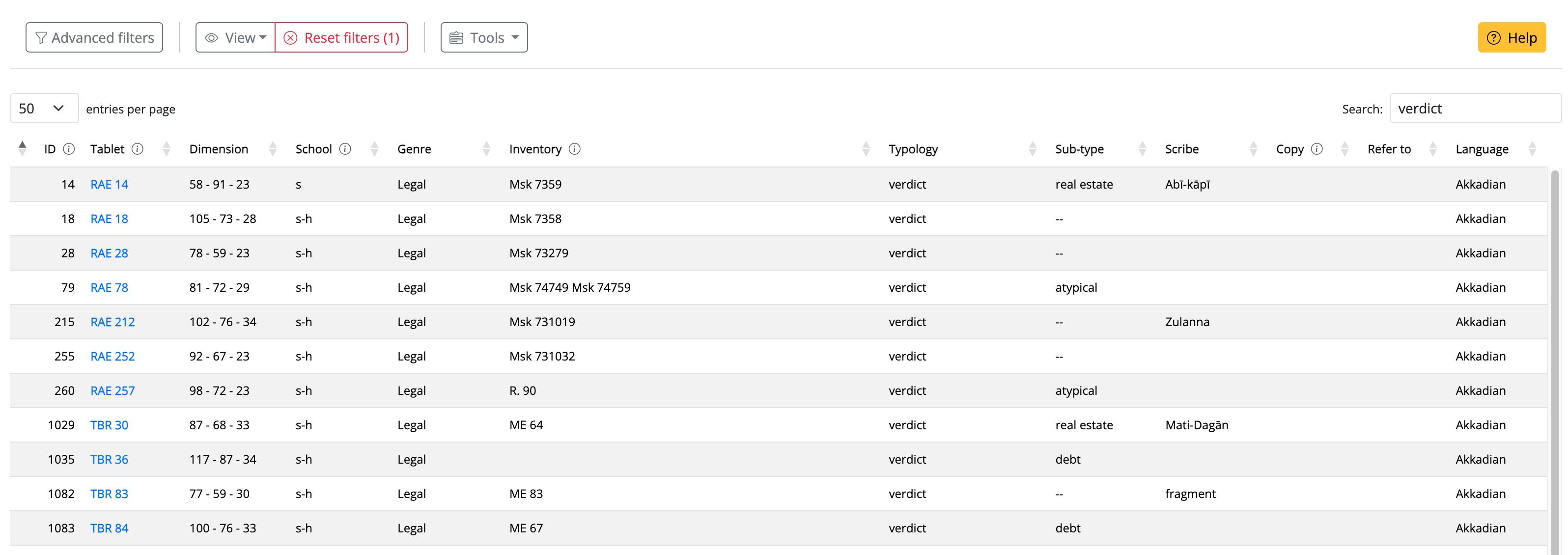 Fig. 2
3. Advanced filters
The Advanced filters button opens a panel on the right of the screen, holding one small box per filterable property: collection, site, language, scribal school, scribe, genre, typology, sub-type, bibliographic reference, duplicates, presence of images, presence of a transliteration, publication status, findspot.
Four things are worth knowing about them:
- Each box lists the values actually attested, with the number of texts beside each one. There are no empty options: if a value is offered, it has results.
- The boxes work as a cascade. Selecting a value in one box recalculates all the others over what is left. A value that disappears has not been hidden — in the combination you have built it has no results. This is what stops you from constructing a filter that returns nothing.
- Several values inside one box widen the result; values in different boxes narrow it. Choosing letter and administrative under Genre returns both kinds; adding Emar under Site returns only the ones from Emar.
- Multiselection. You can also select multiple rows at once by holding Shift or Cmd/Ctrl while clicking.
- The panel does not cover the table. It stays open alongside it, and the table remains readable and clickable while you filter — you can see the effect of each choice as you make it, instead of filtering blind.
The free-text box above the table searches all columns at once, and combines with the filters.
Advanced filters
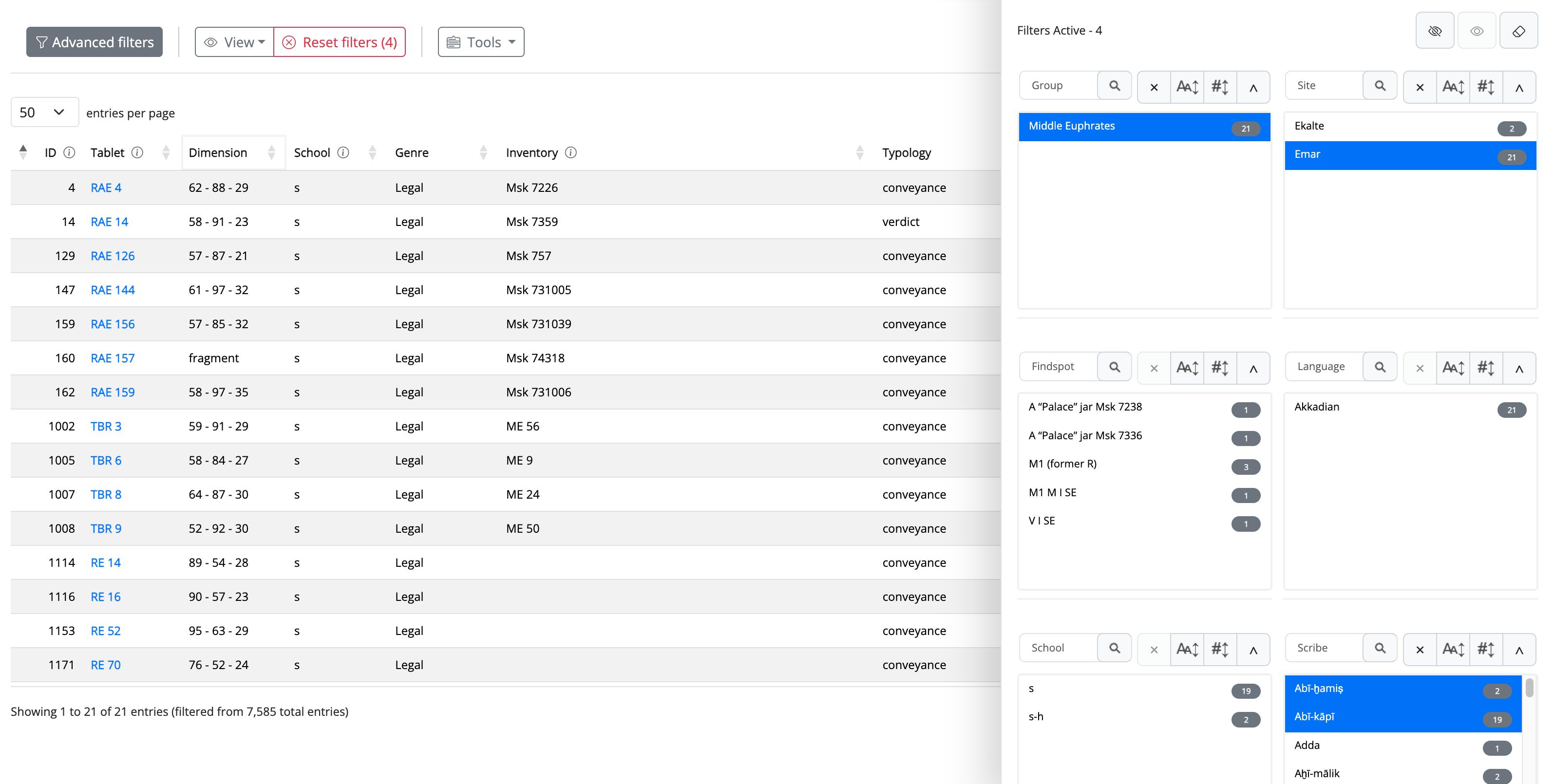 Fig. 3
Filters survive the browser being closed
Your active filters, and the columns you have shown or hidden, are remembered between sessions. If the table looks unexpectedly empty — or a column you rely on has vanished — a filter left over from a previous session is the usual explanation.
The Reset filters button shows the number of active constraints in brackets and clears all of them, along with the free-text search, in one click.
4. Columns and export
Columns shows and hides individual columns. Beyond tidying the screen, this is how you shape a table for export: hide what you do not need, and only the remaining columns are carried over.
Tools collects the operations on the current selection — that is, on the filtered set, not only on the page you are looking at:
| Tool | What it does |
|---|---|
| Copy | copies the selection to the clipboard |
| CSV | downloads it as a spreadsheet file |
| Compare | opens the selected texts side by side |
| Plot | places the filtered texts on the map |
| produces a printable list |
Screenshot da inserire
Menu Tools e menu Columns aperti → docs/images/texts/database_tools.jpg
5. Editorial columns
Two further columns exist for editorial accounts (Advanced users and Administrators) only, and are hidden by default — enable them from Columns:
- backup — direct access to the text file and to the annotations file kept for each tablet. A greyed-out icon means that file has not been generated.
- edit — the record editing form and the delete control.
They are not available to other accounts, in any form.
The guided tour is out of step with the interface
The Help button starts a guided tour of the page. The tour was written for an earlier arrangement of the filters, so the step that should open the filter panel currently does nothing. The remaining steps still describe the page correctly. This will be rewritten once the layout of the filters is settled.