Annotate text
/tablet/<id>/annotate — Advanced users and Administrators only.
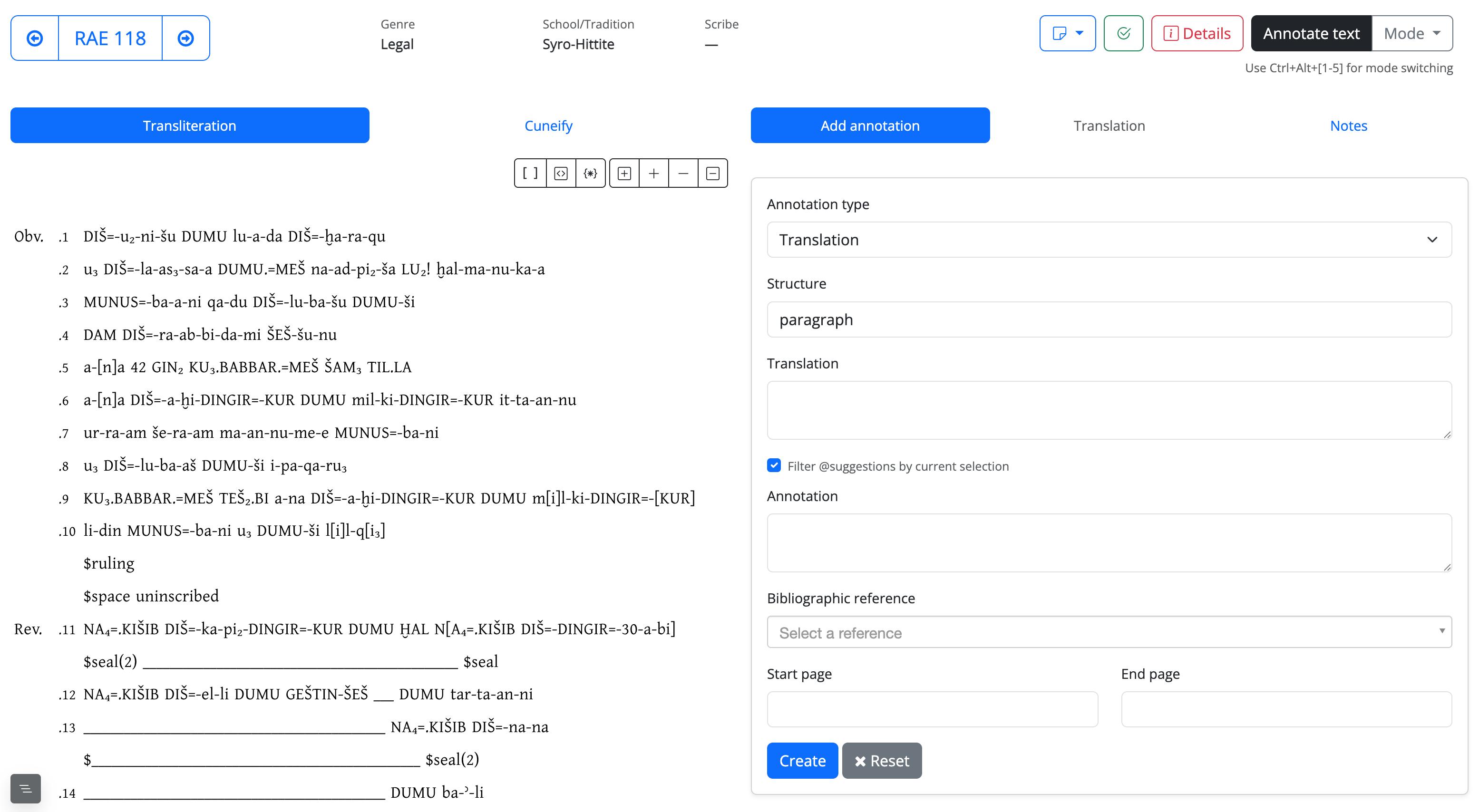
An annotation in DAPCA is always anchored to a stretch of text: you select one or more tokens in the left column and the annotation is attached to exactly those occurrences, not to a line number or a page. That is what allows the reading view to highlight the passage an observation refers to, and the translation to align with the transliteration rather than sit beside it.
Annotation interphace
1. Making an annotation
- Select the words in the text. The selection is by token, so it snaps to word boundaries; it may run across lines.
- Token selection can also be non-contiguous. This means you can select a portion of text and then click on other words, even ones that are far apart.
- The order of selection matters. For example, when marking kinship relations, the child must be selected before the parent (
PN1 DUMU PN2) — otherwise the relationship would be reversed. - Choose the type in the form on the right. The form changes accordingly — each type asks only for the fields it needs.
- Fill in and submit. The annotated stretch is marked in the text.
To revise an annotation, open it from the Translation or Notes tab.
Reset button clears the form without saving.
2. The five types
| Type | What it records | Fields it asks for |
|---|---|---|
| Translation | The English rendering of the selected passage | structure, translation, comment, reference |
| Alternative reading | A different reading of the same signs | notation, translation, comment, reference |
| Simple annotation | A philological or historical observation | comment, reference |
| Editorial notes | A working note for internal use — not part of the published edition | comment, reference |
| Alternative hierarchy | A different structural division of the text | structure, comment |
Two notes on the fields:
- Alternative reading takes the reading in diplomatic notation. Use
//to mark a line boundary inside it. - Every type except Alternative hierarchy can carry a bibliographic reference with page range, taken from the project bibliography. An observation that comes from the literature should carry it: it is what distinguishes an editorial decision from a citation.
Editorial notes are visible to editors only
Use this type for working remarks — things to check, doubts, reminders. Everything else is part of the edition and is displayed to readers.
3. Tagging names in a translation
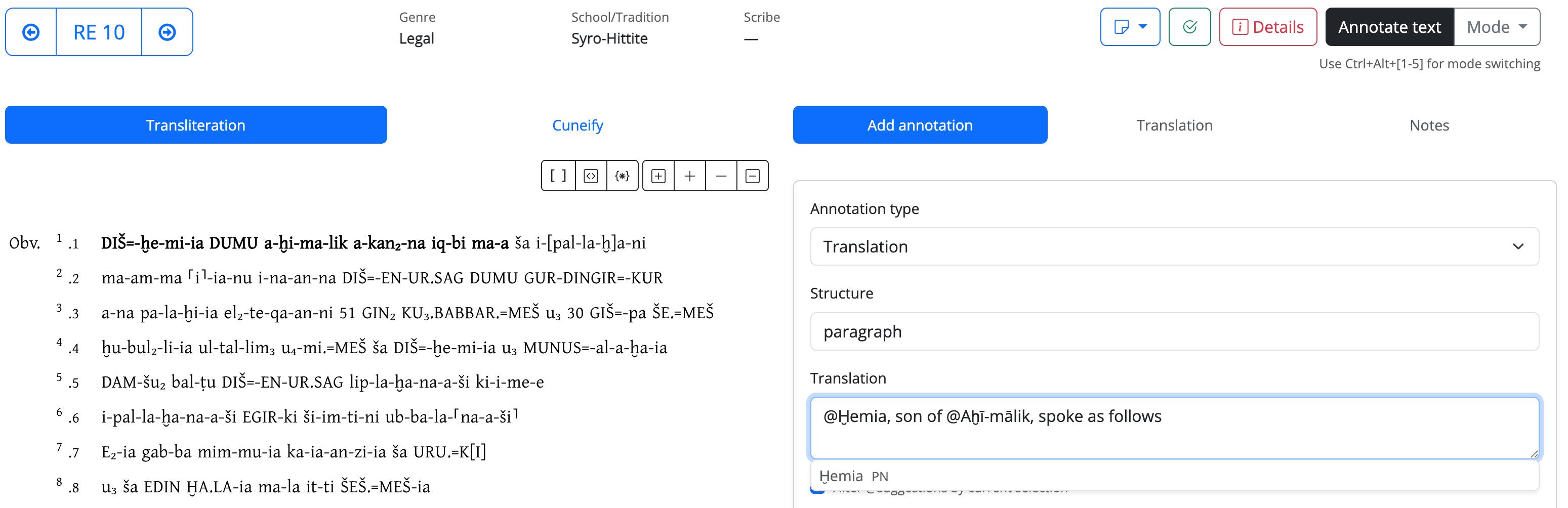
In the translation field, typing @ followed by two or more characters opens a list of
normalised name forms and offers to complete one. The chosen form is inserted with the
@ kept in front of it: the mark stays in the text as a tag, so that a name in the English
translation remains tied to the entity it renders.
The suggestions come from the onomasticon and cover every class — personal, divine, geographic, month names — each shown with its class beside the form, which is what tells a personal name from a homophonous place name.
You may type in ASCII: the list matches both the normalised spelling and its ASCII fold, so
@Ahi finds Aḫī-Dagān without your having to produce the diacritics inside an English
sentence.
The checkbox Filter @suggestions by current selection restricts the list to the entities actually attested in the tokens you have selected — the handful of names that are really in the passage, rather than the whole onomasticon.
@ is for proper names
4. The Translation and Notes tabs
The two tabs beside the form list what already exists on this tablet: Translation gathers the translation annotations, Notes the alternative readings, observations and editorial notes. A tab that is greyed out simply means there is nothing of that kind yet.
Both panes scroll in step with the text: the annotation you are reading and the passage it belongs to stay side by side.
5. The backup file
Every change to the annotations rewrites a backup file for the tablet,
<id>_annotations.json, kept on the server. It holds the annotations together with the
list of lemmata and name forms attached to the text.
This file is not a convenience: it is the only record that survives the deletion of a tablet, and it is read back when the text is re-imported — see Adding a new tablet. It is written after every annotation is saved, so it is always current with respect to this layer.
Lemma assignments are not written to the file at every click
Attaching lemmata is a high-frequency operation in the Lemmatizer, and the file is not rewritten each time. It is brought up to date whenever an annotation is saved, and always immediately before a tablet is deleted — which is the moment that matters.