The Tablet
A tablet in DAPCA is not a page but a workspace. One URL, one text, and a set of modes that change what you can do with it — read it, correct the transliteration, annotate it, mark kinship, identify individuals, record seal impressions. The text on the left stays where it is; it is the right-hand column, and the behaviour of the words themselves, that change from mode to mode.
This section documents the workspace one mode at a time.
1. Modes
The mode is part of the address: /tablet/<id>/view, /tablet/<id>/annotate, and so on.
You switch between them from the Mode menu at the top right of the page, next to the
button showing the mode you are currently in.
| Mode | What it is for | Who can open it |
|---|---|---|
| View tablet | Reading the edition: transliteration, translation, notes, images, metadata | anyone, within the limits of what the account may see |
| Edit tablet | Correcting the text token by token; splitting, merging, deleting words | editorial accounts |
| Annotate text | Attaching translation, alternative readings, commentary to a stretch of text | editorial accounts |
| Mark genealogies | Recording X son of Y as it is written on this tablet | editorial accounts |
| Prosopography | Deciding which historical individual each personal name refers to | editorial accounts with prosopographic permissions |
| Seals | Recording which seals were impressed on this tablet, and by whom | editorial accounts with permission to edit seals |
"Editorial account" here means an Advanced user or an Administrator. An account without editorial rights never sees the Mode menu at all: for it the workspace is simply the reading view, and the other addresses return a permission error rather than a degraded page.
Mode menu
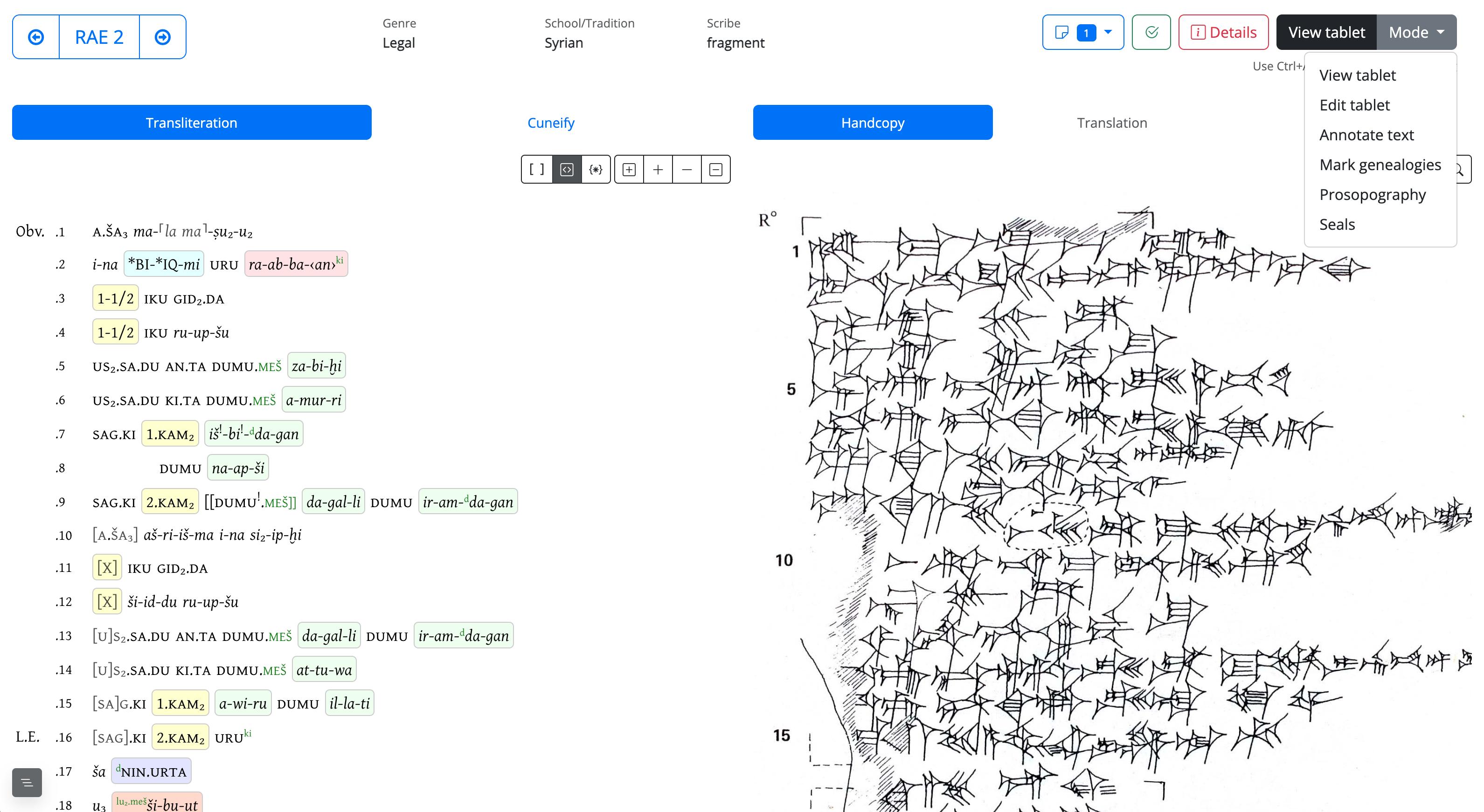 Fig. 1
2. The order of work
The modes are not alternative ways of doing the same thing: they are layers, and each one assumes the one before it. A text that has just been imported is not ready to be annotated, and a tablet whose personal names have not been normalised cannot be used for prosopography.
| Step | Page or Mode | Function | |
|---|---|---|---|
| 1. | Import | /tablet/add | the transliteration becomes lines, tokens, signs |
| 2. | Correction | Edit tablet | the tokenisation is checked and fixed |
| 3. | Normalisation | /lemmatizer | each token is attached to a lemma or a name form |
| 4. | Annotation | Annotate text | translation, readings, commentary |
| 5. | Kinship | Mark genealogies | "X son of Y", as written on this tablet |
| 6. | Identification | Prosopography | which individual each attestation refers to |
| 7. | Seals | Seals | which seal objects were impressed here |
Steps 1, 2, 4, 5, 6 and 7 happen in this workspace. Step 3 does not: normalisation is a corpus-wide operation and has its own interface — see Indexes — specifically the Global lemmatizer.
Two consequences worth stating plainly:
- Correcting the text after later layers exist is not free. Splitting a token that already carries a lemma, a kinship relation or an annotation redistributes some of that work and leaves the rest behind — Edit tablet says exactly what follows the split and what does not.
- Nothing is recomputed behind your back. The layers are editorial statements, not derivations; if the transliteration changes, what was said about it stays as it was until someone revises it.
3. What is shared by every mode
Whatever mode you are in, the page keeps:
- the header — siglum, navigation to the previous and next tablet, the Details panel with the catalographic record, and the Mode menu;
- the left column — the text itself, with the line numbers and the tablet faces;
- the right column — which is what the mode replaces.
Words in the text are clickable in every mode, but a click does something different in each: in the reading view it opens the token's card, in Edit tablet it opens the editing dialog, in Seals it links the token to a seal attestation.
Two details you may notice
Edit lemma used to be a seventh mode. It has been withdrawn — lemmatisation is done in the Lemmatizer, over the whole corpus, not tablet by tablet.
Prosopography is served by a different internal route from the other modes. The only visible effect is that its page is built slightly differently; there is nothing you need to do about it.