Edit tablet
/tablet/<id>/editToken — Advanced users and Administrators only.
This is where the transliteration is corrected after import. The unit of work is the token: one word as the parser cut it out of the line. Click a word in the text and a dialog opens on it; what you type there is the diplomatic notation, exactly as it would be written in the import file.
Edit token modal
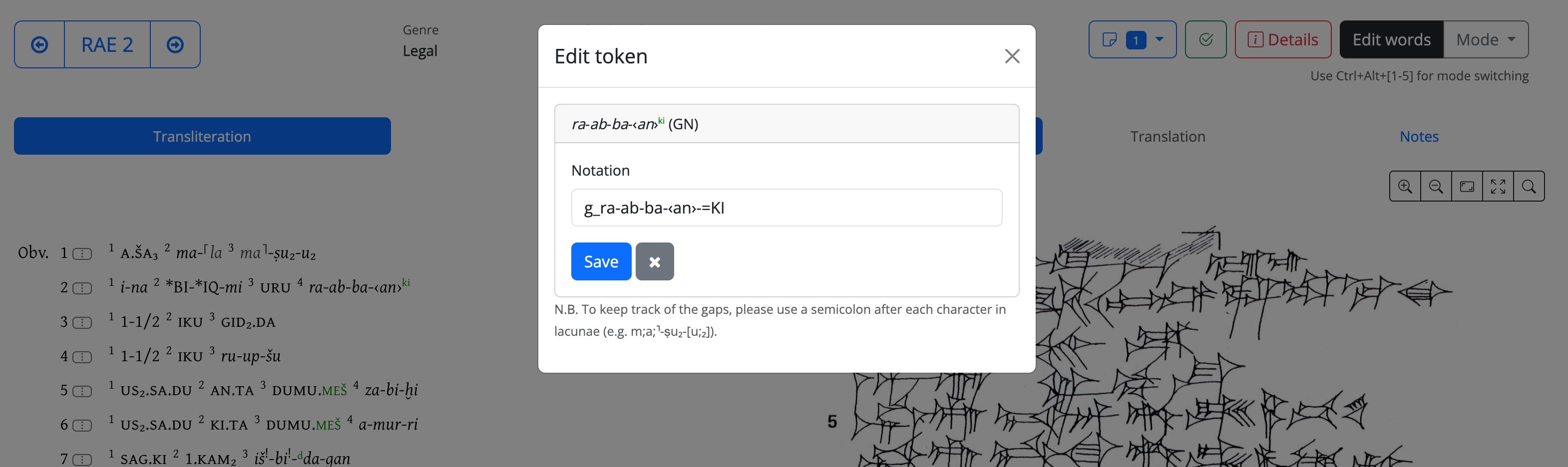
1. Class markers are shown even though they are not stored
Personal, divine, geographic and month names are marked in the input notation with a
prefix — p_ for a masculine personal name, f_ for a feminine one, d_ divine, g_
geographic, m_ month, n_ numeral, and so on (semantic classifiers).
The parser strips the marker off the word and records the class in a separate field: p_ir-am-ᵈda-gan is stored as the word
ir-am-ᵈda-gan with class PN.
If the dialog showed you the stored notation, you would see a name with no marker; saving it unchanged would re-derive the class from what is written and silently turn a personal name into an ordinary word (see the headword vs named entity). So the field is pre-filled with the marker reconstructed from the recorded class. What you see is what the parser would need in order to produce the token as it now stands.
Practical consequences:
- to change a word's class, change its marker — remove
p_and it becomes an ordinary word, writed_and it becomes a divine name; - do not delete the marker while correcting a spelling unless that is what you mean.
Broken contextes
DAPCA tracks reconstructed (fractured) text spans, and the parser normally infers them from context — but when editing a single token, that context isn't visible to it. For example, editing KI.TA inside the gap [US₂.SA.DU KI.TA DUMU.MEŠ a-mur-ri] passes the parser only that token, with no indication that it lies within a lacuna. In such cases, mark each sign inside the gap with a trailing semicolon (e.g. KI;.TA;) to preserve the gap information.
2. Splitting a token
Type a space and the token splits. ŠAM₂.TIL.LA typed as ŠAM₂ TIL.LA becomes two tokens;
three spaces, four tokens. Deleting the content entirely deletes the token.
The dialog shows a preview of the result before you save — the tokens as the parser would cut them, each with the class it would receive. The preview is produced by the same parser that will do the saving, so what you see is not an approximation.
3. What happens to a lemma when a token splits
If the token you are splitting is already attached to a lemma or to a normalised name form, the preview asks which of the resulting tokens should keep it. This is the part worth understanding, because getting it wrong misfiles evidence rather than losing it:
- when only one of the resulting tokens can plausibly receive it, that one is selected for you;
- otherwise nothing is selected and you are warned: choose, or let the link be dropped;
- the two planes never cross. A name form can only land on a token whose class is a
proper name; an ordinary lemma only on a token that is not. If your choice would
cross the line — say you dropped a personal-name form on a token that has just lost its
p_— the link is detached, and you are told so.
Edit token preview: case 2
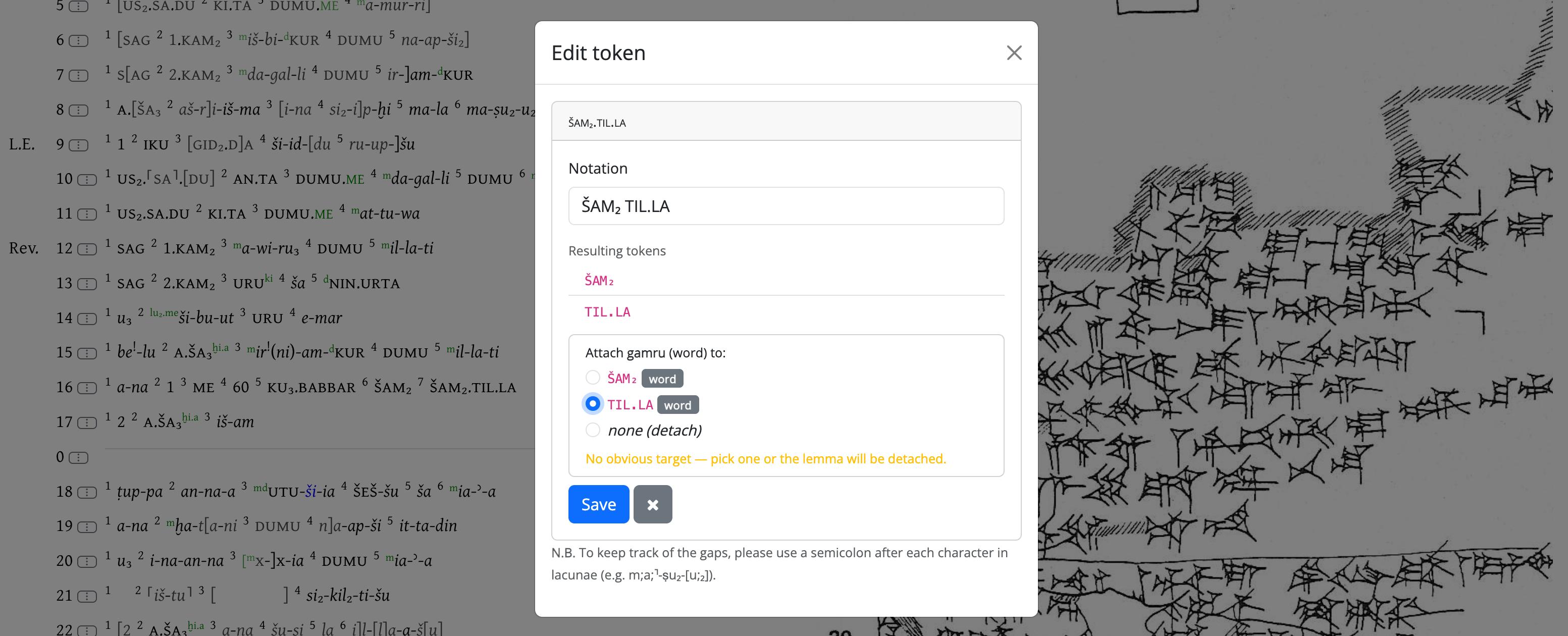
A detached token is not lost: it keeps its class and reappears in the Lemmatizer, in the tab where it belongs, waiting to be re-assigned.
Only lemmata follow the split
Occurrence-level kinship relations, prosopographic attestations and annotations stay
on the first of the resulting tokens, wherever the relevant word actually ended
up. If you split a token that carries any of them — and PN DUMU PN sequences are
exactly the ones that get split — check those layers afterwards.
4. Editing the line, and the non-word tokens
Structural and "epigraphic" notations are tokens too, and in this mode they are clickable like the words:
| Notation | Renders as |
|---|---|
$ruling, $ruling line |
a horizontal rule across the column |
$blank space, $(n) |
the text stays visible |
$Seal A45 |
a seal notation, which the Seals mode can link to a seal object |
In this mode they keep their rendered appearance — you see the ruling, not the word
$ruling — but the whole strip is clickable, so you can correct or remove them without
switching to another mode.
Managing lines
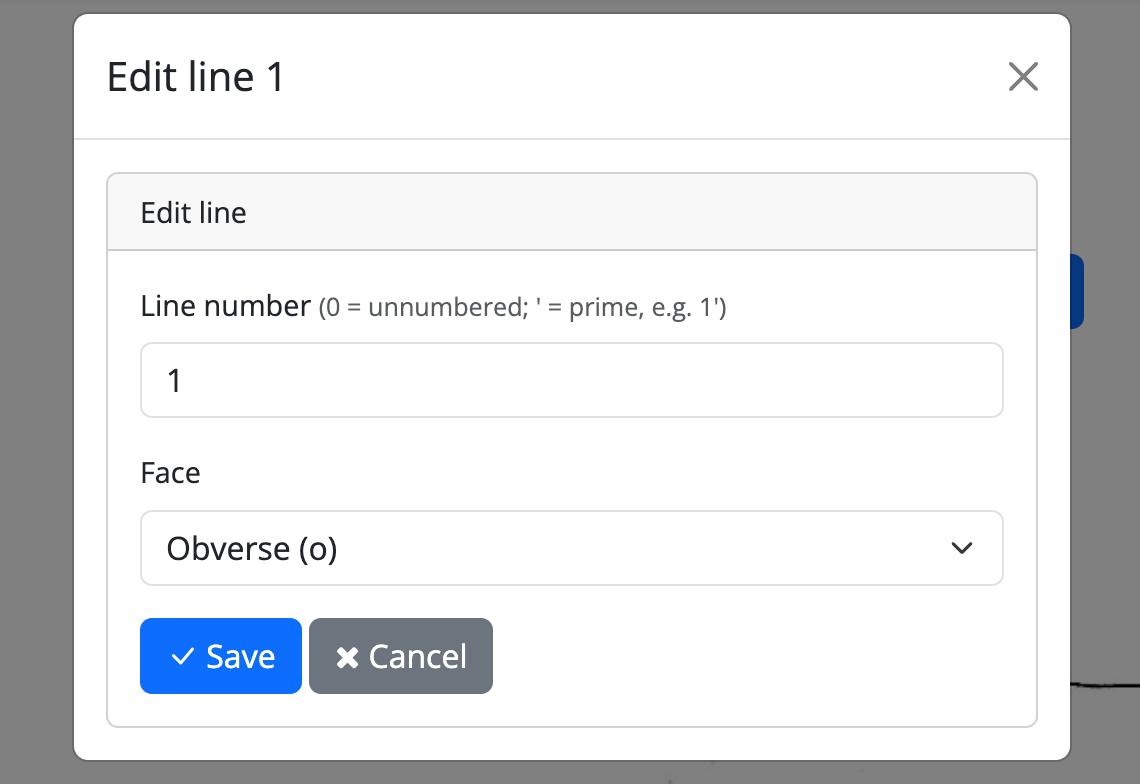
- Changing a line number — click the line number to open the line editor modal, where the number can be changed directly.
Edit line numbers and verso
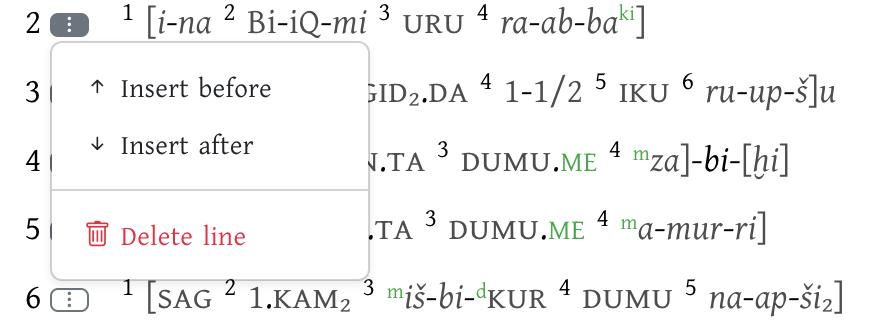
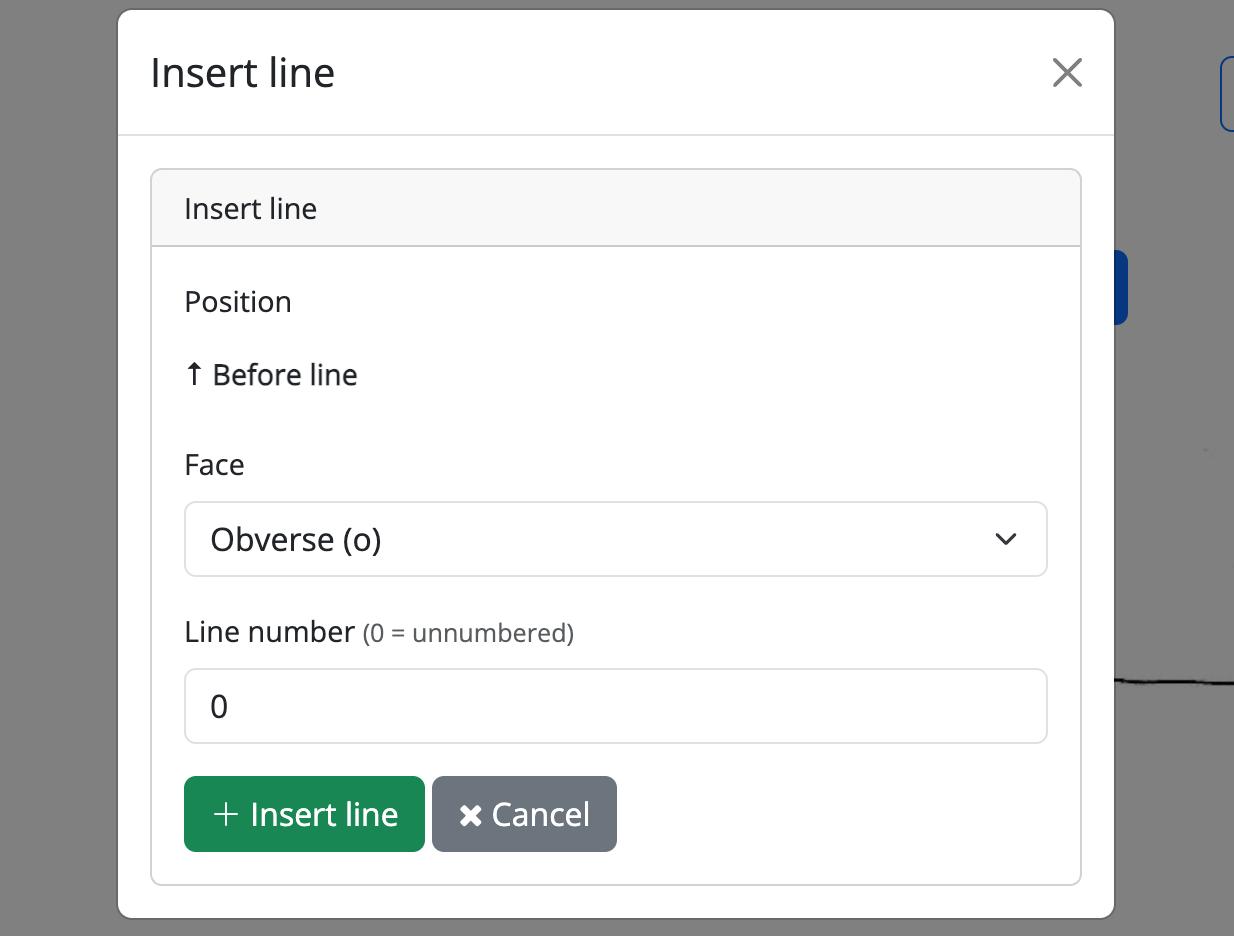
- Adding or deleting a line — click the vertical ellipsis (⋮) next to the line to open a contextual menu; choosing "Add line" or "Delete line" from there opens the corresponding modal to complete the action.
Adding or deleting a line: step 1
Adding or deleting a line: step 2
New lines for epigraphic notations
If the new line contains only epigraphic notations (e.g. $ruling, $blank space, $Seal, etc.), its line number must be set to 0 (zero) — equivalent to saying the line has no number (see line numbering and the sample text nr.2).
6. Before you edit a text that is already worked on
The tokenisation is the foundation every other layer is anchored to. Correcting a typo in a word is harmless; re-cutting the tokens of a passage that has already been lemmatised, annotated and used for prosopography moves the ground under those layers. The system protects the lemma links and warns about the impossible ones, but it cannot know which of two new tokens your annotation was about.
The safe order is the one in the introduction: correct first, interpret afterwards.